



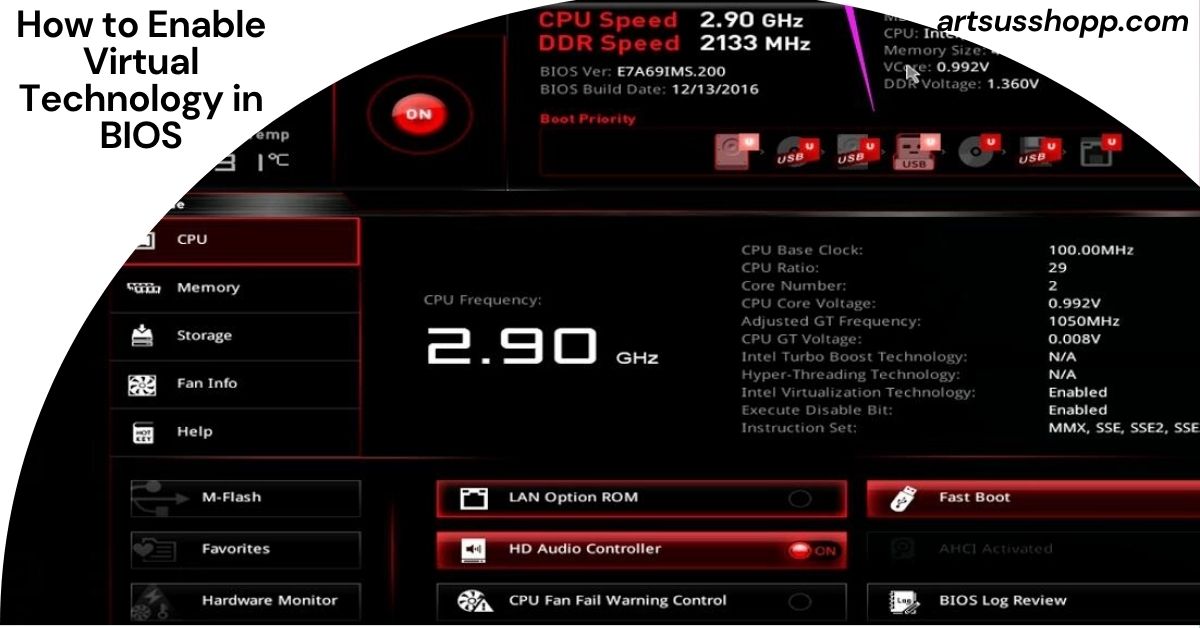
How to Enable Virtual Technology in BIOS: Complete Step-by-Step Guide for Beginners in 2026
Virtualization technology has become an essential feature for modern computers. Whether you want to run virtual machines, use Android emulators, test software safely, develop applications, or install multiple operating systems, virtualization is often required. Many users search for how to enable virtual technology in BIOS because they encounter errors when using programs such as VirtualBox, VMware, Hyper-V, BlueStacks, NoxPlayer, Docker, or Windows Subsystem for Android.
If virtualization is disabled, these applications may not work correctly or may perform poorly. Fortunately, enabling virtualization is usually simple once you understand where to find the setting in your BIOS or UEFI firmware.
This comprehensive guide explains everything you need to know about how to enable virtual technology in BIOS, including what virtualization is, why it matters, how to check if it is enabled, and detailed instructions for major motherboard and laptop brands.
What Is Virtualization Technology?
Virtualization technology is a hardware feature built into modern processors that allows a single computer to run multiple virtual environments efficiently.
Instead of dedicating an entire physical computer to one operating system, virtualization allows you to create virtual machines that act like separate computers.
For example, a Windows PC can run:
- Windows 11 as the main operating system
- Ubuntu Linux in a virtual machine
- Android in an emulator
- Test environments for software development
The processor provides special virtualization instructions that improve performance and security.
Intel calls this technology:
- Intel VT-x
- Intel Virtualization Technology
AMD calls it:
- AMD-V
- SVM Mode (Secure Virtual Machine)
Although the names differ, the purpose is the same.
Why Virtualization Technology Is Important
Many modern applications depend on virtualization.
Benefits include:
- Running multiple operating systems
- Software testing
- Application development
- Cloud computing
- Cybersecurity training
- Android emulation
- Container technologies such as Docker
- Improved virtual machine performance
- Better resource management
Without virtualization enabled, many tools either refuse to run or operate much slower.
Common Programs That Require Virtualization
You may need to learn how to enable virtual technology in BIOS if you use:
- VMware Workstation
- Oracle VirtualBox
- Microsoft Hyper-V
- Docker Desktop
- Android Studio Emulator
- BlueStacks
- NoxPlayer
- LDPlayer
- Windows Sandbox
- Windows Subsystem for Android
- Windows Subsystem for Linux 2 (WSL2)
Many users discover virtualization is disabled only after receiving an error message from one of these programs.
How Virtualization Works
A virtual machine normally requires access to processor instructions, memory, storage, and networking resources.
Also Read: How Has Technology Impacted Society? A Complete Guide to Technology’s Influence on Modern Life
Without hardware virtualization:
- The software must emulate hardware.
- Performance becomes slower.
- Resource usage increases.
With virtualization enabled:
- The CPU directly assists virtual machines.
- Performance improves dramatically.
- Multiple operating systems can run smoothly.
Think of virtualization as a special communication layer between the processor and virtual machines.
How to Check If Virtualization Is Already Enabled
Before changing BIOS settings, verify whether virtualization is already active.
Method 1: Using Windows Task Manager
- Press Ctrl + Shift + Esc.
- Click Performance.
- Select CPU.
- Look for Virtualization.
You will see:
- Enabled
- Disabled
If it says Enabled, no further action is required.
Method 2: Using Command Prompt
Open Command Prompt and enter:
systeminfo
Scroll down and find:
Hyper-V Requirements
If virtualization is enabled, Windows will display virtualization-related information.
Method 3: Using PowerShell
Open PowerShell and type:
Get-ComputerInfo
Review virtualization details in the results.
Method 4: Using Third-Party Tools
Popular tools include:
- CPU-Z
- HWiNFO
- Speccy
These utilities provide detailed processor information and virtualization support status.
Understanding BIOS and UEFI
Many people still use the term BIOS, but modern systems typically use UEFI.
BIOS stands for:
Basic Input Output System
UEFI stands for:
Unified Extensible Firmware Interface
Both perform similar functions:
- Initialize hardware
- Manage startup settings
- Control processor features
- Configure virtualization
When searching how to enable virtualization technology in BIOS, the steps are similar for both BIOS and UEFI systems.
Preparation Before Entering BIOS
Before making changes:
- Save important work.
- Close applications.
- Know your motherboard or laptop brand.
- Ensure administrator access.
Most virtualization settings are safe to enable.
How to Enter BIOS in Windows 11
Method 1:
- Open Settings.
- Select System.
- Choose Recovery.
- Click Restart Now.
- Select Troubleshoot.
- Choose Advanced Options.
- Click UEFI Firmware Settings.
- Restart.
Method 2:
Restart the computer and repeatedly press:
- Delete
- F2
- F10
- Esc
The correct key depends on the manufacturer.
How to Enable Virtual Technology in BIOS on ASUS Systems
Many users search specifically for how to enable virtualization technology in ASUS BIOS.
ASUS Motherboards
- Restart your PC.
- Press Delete or F2.
- Enter Advanced Mode.
- Select Advanced.
- Open CPU Configuration.
- Find Intel Virtualization Technology or SVM Mode.
- Change to Enabled.
- Save settings using F10.
- Restart.
ASUS Gaming Motherboards
For ROG boards:
- Enter BIOS.
- Select Advanced Mode.
- Navigate to CPU Configuration.
- Enable virtualization.
- Save and exit.
This is the most reliable method for how to enable virtualization technology in ASUS BIOS.
How to Enable Virtual Technology in BIOS on Gigabyte Motherboards
- Enter BIOS using Delete.
- Open Advanced CPU Settings.
- Locate Intel Virtualization Technology or SVM Mode.
- Enable the feature.
- Save changes.
- Restart.
Most Gigabyte boards place the setting inside CPU-related menus.
How to Enable Virtual Technology in BIOS on MSI Motherboards
- Restart the computer.
- Press Delete repeatedly.
- Open OC Settings.
- Navigate to CPU Features.
- Find Intel VT-x or SVM Mode.
- Set to Enabled.
- Save settings.
- Exit BIOS.
How to Enable Virtual Technology in BIOS on ASRock Motherboards
- Enter BIOS.
- Open Advanced Settings.
- Select CPU Configuration.
- Enable virtualization.
- Save and reboot.
ASRock usually places the option in the CPU Configuration section.
How to Enable Virtual Technology in BIOS on Dell Computers
- Restart the PC.
- Press F2.
- Enter System Setup.
- Open Virtualization Support.
- Enable:
- Virtualization
- VT for Direct I/O (optional)
- Save changes.
- Restart.
Dell systems often make virtualization settings easy to find.
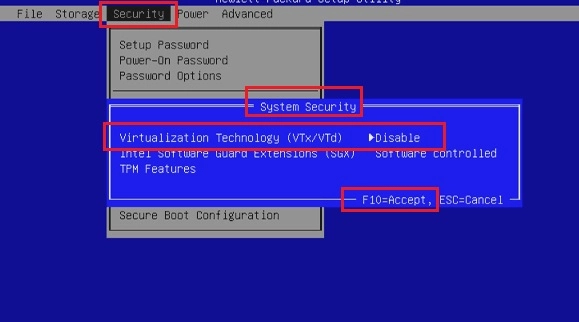
How to Enable Virtual Technology in BIOS on HP Computers
- Restart the computer.
- Press Esc repeatedly.
- Press F10.
- Open System Configuration.
- Locate Virtualization Technology.
- Enable it.
- Save settings.
- Exit BIOS.
HP laptops may also show Virtualization Technology (VTx) as the option name.
Also Read: How Do You Spell Technologically? Complete Guide to Spelling, Meaning, Usage, and Common Mistakes
How to Enable Virtual Technology in BIOS on Lenovo Computers
- Restart.
- Press F1, F2, or Novo Button.
- Open Security or Configuration.
- Locate Intel Virtualization Technology or AMD SVM.
- Enable the feature.
- Save settings.
- Restart.
Many Lenovo ThinkPad systems place virtualization under Security settings.
How to Enable Virtual Technology in BIOS on Acer Computers
- Restart.
- Press F2.
- Open Main tab.
- Locate Virtualization Technology.
- Enable.
- Save and exit.
Acer laptops generally provide straightforward access to virtualization controls.
How to Enable Virtual Technology in BIOS on Intel Processors
Intel CPUs use:
- Intel VT-x
- Intel VT-d
VT-x enables virtual machine support.
VT-d provides advanced hardware access for virtual machines.
Recommended settings:
- Intel Virtualization Technology = Enabled
- VT-d = Enabled
Enabling both offers maximum compatibility.
How to Enable Virtual Technology in BIOS on AMD Processors
AMD processors typically use:
- AMD-V
- SVM Mode
To enable:
- Enter BIOS.
- Open CPU Configuration.
- Locate SVM Mode.
- Set to Enabled.
- Save changes.
Most AMD systems use the SVM label rather than AMD-V.
How to Verify Virtualization After Enabling It
After rebooting:
- Open Task Manager.
- Click Performance.
- Select CPU.
- Check Virtualization.
It should now display:
Enabled
You can also launch your virtualization software to confirm functionality.
Troubleshooting When Virtualization Option Is Missing
Sometimes users cannot find the virtualization setting.
Possible causes include:
Outdated BIOS
Older firmware may hide virtualization features.
Solution:
Update BIOS from the manufacturer’s website.
Unsupported Processor
Very old processors may not support virtualization.
Check CPU specifications.
Restricted Corporate Devices
Business-managed computers may lock BIOS settings.
Contact your IT administrator.
Basic BIOS Interface
Some systems hide advanced settings.
Switch from Easy Mode to Advanced Mode.
Virtualization Is Enabled But Software Still Shows Disabled
This issue is surprisingly common.
Possible reasons:
Hyper-V Conflict
Windows Hyper-V can interfere with some virtualization software.
Disable Hyper-V if required.
Core Isolation Settings
Windows Security may impact virtualization software behavior.
Review:
Windows Security → Device Security
Third-Party Security Software
Certain antivirus programs may block virtualization features.
Temporarily disable them for testing.
Incomplete BIOS Save
Return to BIOS and confirm settings were saved correctly.
Can Enabling Virtualization Slow Down My Computer?
No.
A common myth is that enabling virtualization reduces performance.
In reality:
- Normal computer usage remains unchanged.
- Virtual machines perform better.
- Modern processors are designed for virtualization.
Most users notice no negative impact.
Is It Safe to Enable Virtualization?
Yes.
Virtualization is a standard processor feature.
Benefits include:
- Better compatibility
- Enhanced software development
- Improved testing environments
- Support for modern Windows features
Millions of computers operate with virtualization enabled every day.
Virtualization and Windows 11
Windows 11 increasingly relies on virtualization.
Features that may require it include:
- Hyper-V
- Windows Sandbox
- WSL2
- Memory Integrity
- Virtual Machine Platform
As Microsoft expands security features, virtualization becomes even more important.
Virtualization for Gamers
Gamers often need virtualization for:
- Android emulators
- Game testing
- Streaming tools
- Development environments
Programs like BlueStacks and LDPlayer usually perform significantly better when virtualization is enabled.
Virtualization for Developers
Software developers rely on virtualization for:
- Linux environments
- Testing software versions
- Docker containers
- Cloud simulations
- Cybersecurity labs
Enabling virtualization creates a more flexible development workflow.
Virtualization for Students
Students benefit from virtualization when:
- Learning Linux
- Studying networking
- Practicing cybersecurity
- Testing software safely
A single computer can host multiple learning environments.
Advanced Virtualization Settings Explained
Some BIOS menus contain additional virtualization options.
VT-d
Allows direct hardware access.
Useful for advanced virtualization workloads.
IOMMU
AMD equivalent of VT-d.
Improves hardware passthrough capabilities.
SR-IOV
Used primarily in enterprise networking environments.
Nested Virtualization
Allows a virtual machine to run another virtual machine.
Mostly useful for developers and IT professionals.
Common BIOS Names for Virtualization
Manufacturers may use different names.
Look for:
- Intel VT-x
- Intel Virtualization Technology
- VT-d
- AMD-V
- SVM Mode
- Secure Virtual Machine
- Virtualization Extensions
Any of these may represent virtualization controls.
Mistakes to Avoid When Enabling Virtualization
Avoid these common errors:
- Exiting BIOS without saving.
- Enabling the wrong setting.
- Forgetting to reboot.
- Ignoring BIOS updates.
- Assuming virtualization is unsupported without checking CPU specifications.
Taking a few extra minutes to verify settings can prevent hours of troubleshooting.
Future of Virtualization Technology
Virtualization continues to evolve rapidly.
Future trends include:
- Stronger hardware security
- Faster virtual machine performance
- Better cloud integration
- AI development environments
- Advanced container technologies
As cloud computing and artificial intelligence expand, virtualization will become even more important for everyday users.
Expert Tips for Maximum Virtualization Performance
To get the best results:
- Use an SSD or NVMe drive.
- Install sufficient RAM.
- Keep BIOS updated.
- Enable VT-x or AMD-V.
- Enable VT-d or IOMMU when available.
- Allocate resources wisely to virtual machines.
- Keep virtualization software updated.
These steps can dramatically improve virtual machine performance.
Conclusion
Learning how to enable virtual technology in BIOS is one of the most valuable skills for modern PC users. Whether you are running virtual machines, Android emulators, development environments, or advanced Windows features, virtualization is often a requirement.
The process is generally simple:
- Enter BIOS or UEFI.
- Locate virtualization settings.
- Enable Intel VT-x, VT-d, AMD-V, or SVM Mode.
- Save changes.
- Restart the computer.
Understanding how to enable virtualization technology in BIOS and how to enable virtualization technology in ASUS BIOS can eliminate software errors, improve performance, and unlock powerful computing capabilities. As virtualization becomes increasingly important in Windows 11, cloud computing, software development, and cybersecurity, enabling this feature is a smart step for nearly every computer user.
Frequently Asked Questions (FAQs)
Can virtualization be enabled without entering BIOS?
In most cases, no. Virtualization settings are controlled by BIOS or UEFI firmware and usually cannot be enabled entirely from within Windows.
Does enabling virtualization increase electricity usage?
The increase is negligible. Most users will not notice any meaningful change in power consumption.
Can I disable virtualization later if I no longer need it?
Yes. Simply return to BIOS and change the setting from Enabled to Disabled.
Will enabling virtualization void my computer warranty?
No. Virtualization is an official processor feature and enabling it does not affect manufacturer warranties.
Can virtualization improve Android emulator FPS?
Yes. Many Android emulators gain substantial performance improvements when virtualization is enabled.
Do all Windows 11 PCs support virtualization?
Most modern Windows 11 computers support virtualization, but support depends on the processor and motherboard firmware.
Can virtualization help cybersecurity training?
Yes. Security professionals often use virtual machines to create isolated environments for malware analysis, penetration testing, and cybersecurity education.
What happens if I accidentally disable virtualization?
Programs that depend on virtualization may stop working or display error messages until the feature is re-enabled.
Can multiple virtual machines run at the same time?
Yes. The number depends on your processor, memory, and storage resources.
Is virtualization useful for home users?
Absolutely. Home users can run Android apps, learn Linux, test software, and use advanced Windows features through virtualization technology.


